
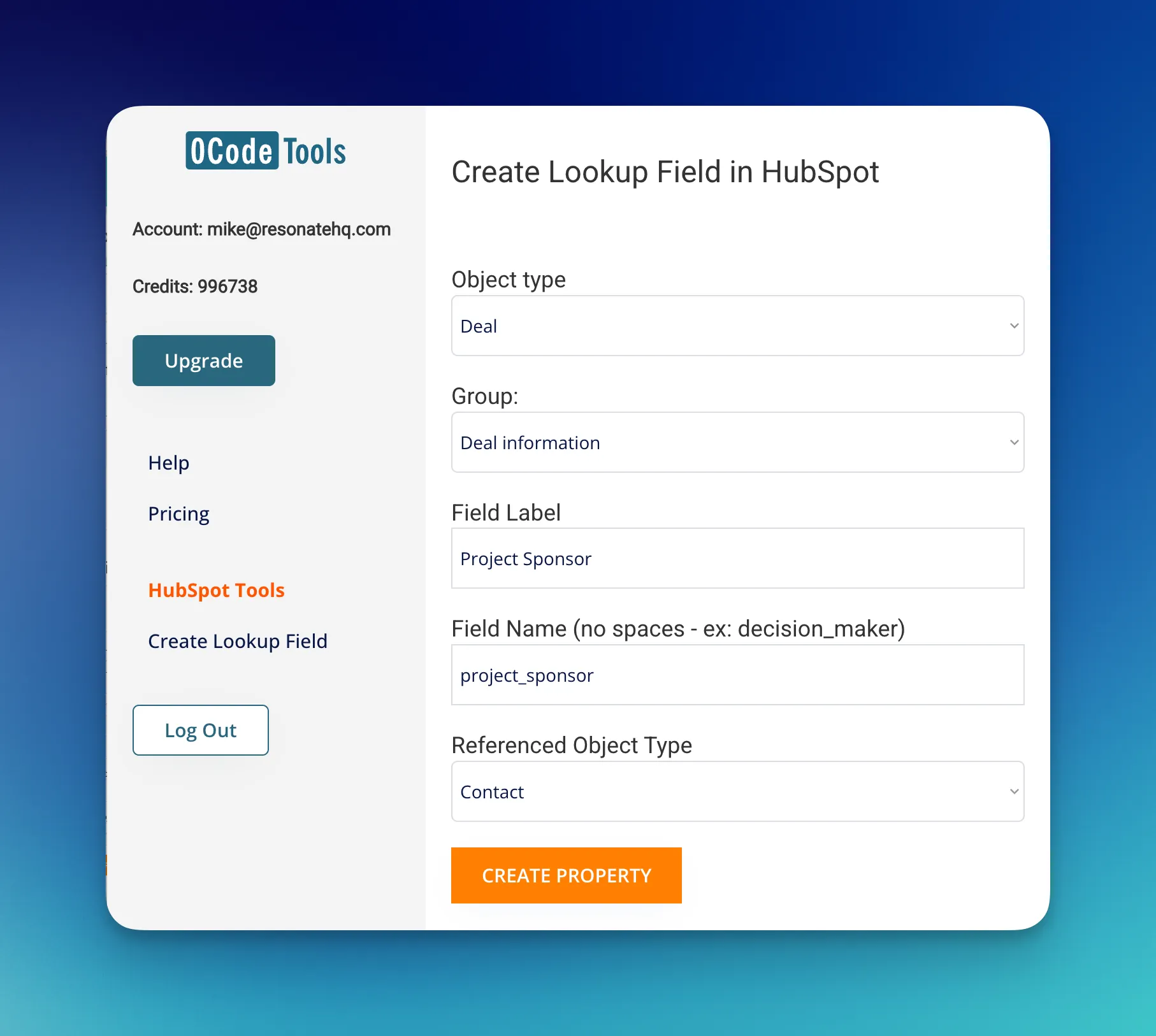
A lookup field in HubSpot is a property on one object that references a single record on another object - for example, a Policy custom object that points to its Company. Out of the box, creating lookup fields requires API calls; Resonate's free 0CodeTools app adds a point-and-click builder so you can create them without code.
If you've ever worked with Salesforce, you know how useful lookup fields are for connecting records across objects. HubSpot's version links data between standard and custom objects in a flexible way, so you can model real-world business relationships without locking yourself into a rigid structure.
What Are Lookup Fields in HubSpot?
A lookup field in HubSpot is a property on one object that references a single record in another object. For example, a custom object called “Policy” could have a lookup to a “Company” record, linking each Policy to its respective client. Or a “Project” custom object might reference a “Contact” record as the “Project Sponsor.” HubSpot also supports adding lookup fields to standard objects like Deals or Contacts, so you can reference a related record as needed. Key note: HubSpot currently allows one record per lookup field—unlike Salesforce, which can support many-to-many relationships through junction objects. In other words, you can’t select multiple related records in a single lookup property. If you need to tie multiple records, you’ll need either additional lookup properties or a different approach.
Creating Lookup Fields in HubSpot
You typically need to define your lookup properties through HubSpot’s API, which can be time-intensive if you’re not a developer.
New Free tool to create lookup fields
Our free app adds a point-and-click interface for creating lookup fields—no API calls, no scripts. If you can fill out a simple form, you can create and manage these new relationships in minutes -> get started at toolbox.resonatehq.com
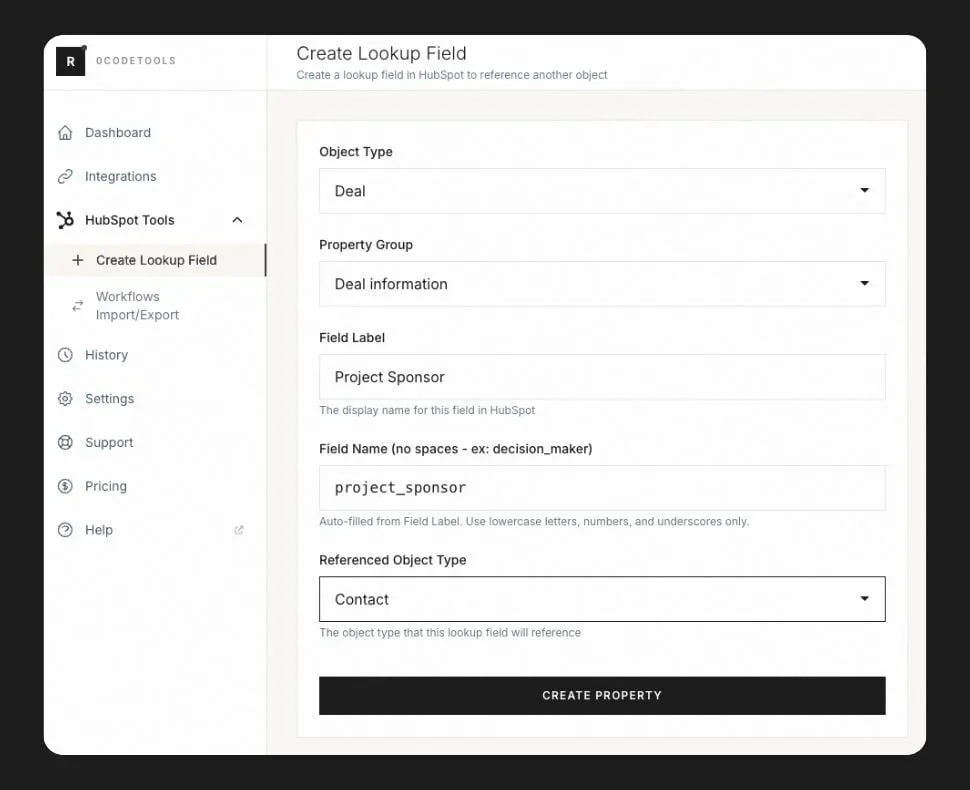
Skip the API calls: 0CodeTools is free to install, connects to your portal in minutes, and includes the lookup field builder alongside other workflow and data tools.
Salesforce-Inspired Best Practices (Tailored for HubSpot)
While Salesforce provides flexible lookup relationships, we’ve adapted some of those best practices for HubSpot’s current one-to-one lookup constraints:
- Use Lookups for Optional or Independent Relationships: If you want to associate two objects without forcing them to always depend on each other, a lookup field is perfect. For instance, a “Contract” record in HubSpot might link to a “Company,” but it can stand alone if you’re still drafting it and don’t know the final client.
- Make Key Properties Required at the Right Time. HubSpot’s Deal stages allow you to require certain properties before moving a deal forward. For example, if you have lookup fields for “Budget Holder” or “Decision Maker” (which might reference a specific Contact), you can require reps to fill these fields before moving the deal to a “Negotiation” stage. This ensures your team has identified the right stakeholders early in the process.
- Avoid vague property names like “Lookup 1.” Instead, use “Primary Supplier,” “Policy Holder,” or “Budget Holder.” Provide help text so users know exactly what they’re linking to.
- Don’t Overdo It: Although HubSpot doesn’t enforce a strict limit on how many lookups an object can have, each additional lookup is one more property to fill out and maintain. Stick to what’s essential for your business processes.
Example Deal Fields (Budget Holder, Decision Maker)
One of the most practical uses for lookup fields in HubSpot is on the Deal object. You might create:
-
Budget Holder: A lookup to the Contact who controls the budget.
-
Decision Maker: A lookup to the Contact who has final approval.
When the deal moves from “Qualification” to “Proposal,” you can make these fields required. That way, your sales reps can’t progress without identifying the right individuals. This not only improves data consistency but also ensures your team never forgets crucial stakeholders during a complex sales cycle.
Industry-Specific Use Cases
1. Healthcare
-
Patient–Care Plan Linking: Create a custom “Care Plan” object and a “Patient” object. A lookup on Care Plan points to a single Patient, allowing staff to see all care plans related to a patient.
-
Patient–Provider Association: Link each patient to their primary provider using a lookup field on the Patient object referencing a “Provider” custom object or Contacts in your CRM.
2. Financial Services
-
Policy ↔ Company/Contact: Create a “Policy” custom object that references a “Company” or “Contact” to track insurance or financial products.
-
Deal Stage Requirements: Add a “Financial Advisor” text property or lookup field, making it required at a certain stage to ensure proper tracking.
3. Retail
-
Order–Customer Linking: Use a lookup to associate imported orders with the respective customer for a consolidated purchase history.
-
Product Catalog & Vendor: A custom “Product” object can include a “Vendor” lookup, linking products to their suppliers.
4. Manufacturing
-
Asset ↔ Customer: Create an “Asset” object for equipment or machinery sold to customers, with a lookup to the Company.
-
Work Order ↔ Asset: A “Work Order” object with a lookup to the “Asset” it services helps support reps understand job context.
5. Technology
-
Ticket ↔ Product: Link a “Ticket” object to a custom “Product” object, making it easy to track support issues per product.
-
Project ↔ Client: Create a “Project” object with a lookup to the Company or Contact, giving project managers an overview of all related projects.
How to Create Lookup Fields in HubSpot
- Sign up free at toolbox.resonatehq.com
- Connect your HubSpot portal
- Open the Lookup creation tool from the menu
- Choose the source object, the property name, and the object it should reference
- Save - the new lookup property is ready to use on records and in workflows
Create your first lookup field free with 0CodeTools.
Related HubSpot workflow guides
- Lead Routing in HubSpot: The Architecture That Actually Scales — Lookup fields are useful for territory-based routing where a contact's territory references a single account owner record, simpler than juggling team membership.
- Associate Orders & Invoices in HubSpot Workflows — when you need many-to-many relationships rather than a single-record reference, associations are the right tool. This guide covers when to use associations vs lookup fields.
- Free HubSpot Workflow Templates: 25 Ready-to-Install Automations — pre-built templates that use lookup fields and association patterns for common ops scenarios.