
If you're importing orders into HubSpot, syncing them via API, or using an integrated app like Shopify or QuickBooks, there's a good chance those orders and invoices land in your CRM without proper associations. They exist as isolated records — not linked to the companies, contacts, or deals they belong to.
This breaks reporting, makes it impossible to see a customer's full purchase history on their timeline, and creates data silos across your revenue operations.
The fix is straightforward: two simple workflows using 0CodeTools workflow actions. No custom code, no Operations Hub Professional required.
Why Orders and Invoices Lose Their Associations
HubSpot Commerce Hub objects — orders and invoices — often come from external systems. When they do, the association context gets lost in transit:
- API imports create order records but don't always create associations to existing companies or contacts.
- Third-party integrations sync transaction data but may only link orders to deals, missing companies and contacts entirely.
- CSV imports bring in order data as flat rows with no way to express relationships between records.
- Manual entry at scale leads to inconsistent linking — some orders get associated, others don't.
The result: your HubSpot portal has hundreds or thousands of orders and invoices floating without connections to the records that give them context.
Two Cases, Two Solutions
Depending on your starting point, you'll use one or both of these approaches:
Case 1 — Find and Associate: Your orders or invoices have no existing associations at all. You need to match them to companies, contacts, or deals using a shared property like company name or email address.
Case 2 — Copy Associations: Your orders or invoices are already associated with deals (from an API, import, or from Case 1). You need to pull the deal's companies, contacts, and other associations onto the order or invoice.
Both solutions use workflow actions from 0CodeTools for HubSpot — a workflow extension app available in the HubSpot Marketplace.
Case 1: Associate Orders with Companies Using Find and Associate
This is the most common scenario. Your orders have a text property (like a company name, customer email, or deal name) that matches a property on the target record, but no actual HubSpot association exists.
The Find and Associate action searches for a record by property value and creates the association automatically.
Setting Up the Workflow
- Go to Workflows in HubSpot and create a new Order-based workflow.
- Set your enrollment trigger — for example, when an order is created, or when a specific property is known (e.g., company name is not empty).
- Add a new action and select 0CodeTools > Find and Associate.
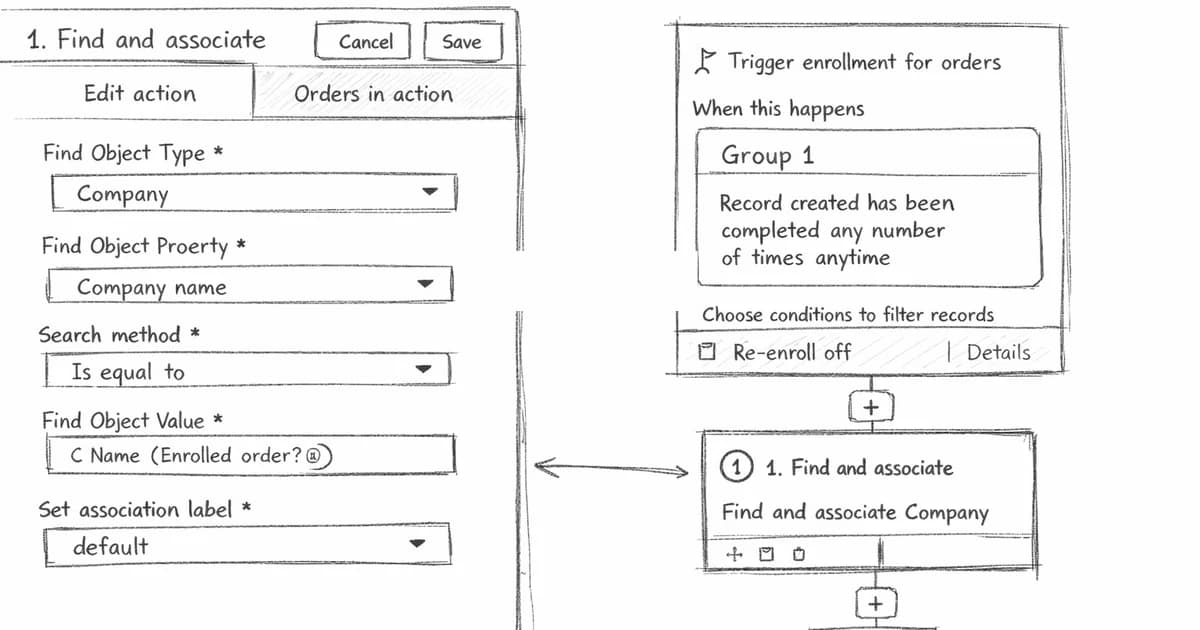
- Configure the action — click the action below to see the configuration:
Find and associate Company
When the workflow runs, it searches for a company whose name matches the value on the order and creates the association.
Associating Orders with Contacts
Add a second Find and Associate action in the same workflow to also link orders to contacts. Here's how both actions look together — click each action to see its configuration:
Find and associate Company
Find and associate Contact
Works the Same for Invoices
The setup is identical for invoice-based workflows. Create an Invoice-based workflow instead and use the same Find and Associate action with the invoice's properties.
What About Deals?
You can associate orders or invoices with deals the same way — set Find Object Type to Deal and match on a shared property like deal name or a custom order reference number.
Case 2: Copy Deal Associations to Orders Using Copy Associations
If your orders or invoices are already associated with deals — whether from an API integration, a CSV import, or from running Case 1 first — you can propagate the deal's associations to the order in one step.
The Copy Associations action takes all associations from a specified related record and copies them to the enrolled object.
Setting Up the Workflow
- Create a new Order-based workflow (or add to your existing one from Case 1).
- Set your enrollment trigger — for example, when the order becomes associated with a deal.
- Add a new action and select 0CodeTools > Copy Associations.
- Configure the action — click the action below to see how:
Copy associations from Deal to Company and Contact
When the workflow runs, it finds the deal associated with the order, then copies all of that deal's company and contact associations onto the order.
The Result
After this workflow executes, your order is now associated with:
- The deal it came from (already existed)
- All companies associated with that deal
- All contacts associated with that deal
This means the order appears on company and contact timelines, shows up in reports filtered by company, and is fully connected in your CRM.
Works with Custom Objects Too
If your deals are associated with custom objects — like projects, subscriptions, or locations — Copy Associations can pull those onto the order as well. Leave the Target Association Types empty to copy everything, or specify exactly which object types you want.
Combining Both Cases in a Single Workflow
For maximum coverage, combine both approaches in one workflow. Click each action to see its configuration:
Find and associate Deal
Copy associations from Deal to Company and Contact
This two-step approach handles the full chain: the order gets linked to its deal, then inherits all of the deal's relationship context — companies, contacts, and any other associated records.
Things to Keep in Mind
- Matching accuracy matters. The Find and Associate action does an exact match (EQ) by default. If your company names have inconsistencies (e.g., "Acme Inc" vs "Acme Inc."), consider using CONTAINS_TOKEN or cleaning up your data first.
- Re-enrollment. If orders get updated after initial creation — for example, a company name gets added later — configure your workflow to re-enroll on property changes so the association gets created.
- Actions run asynchronously. 0CodeTools processes actions in the background. The workflow pauses while the action executes, then resumes automatically. This means your workflows stay reliable even with large volumes.
- One credit per action execution. Each Find and Associate or Copy Associations execution uses one credit. The free plan includes 100 actions per month — enough to test and validate your setup.
Getting Started
- Install 0CodeTools for HubSpot and connect your portal.
- Create an order-based or invoice-based workflow in HubSpot.
- Add the Find and Associate or Copy Associations action.
- Test with a few records before enabling for all orders.
Once set up, every new order and invoice that enters your HubSpot portal will be automatically associated with the right companies, contacts, and deals — no manual work, no broken reporting, no data silos.
Related HubSpot workflow guides
- How to Create Payment Records in HubSpot Workflows — the Commerce Hub sibling pattern. Create payments in workflows alongside Find and Associate to wire payment records to deals automatically.
- Lookup Fields in HubSpot: Ultimate Guide — when associations alone aren't enough, lookup fields let you reference a single record from another object. Useful for property-style references where association labels would be overkill.
- Free HubSpot Workflow Templates: 25 Ready-to-Install Automations — install pre-built templates including Auto-Associate Contacts to Deals, Sync Deal Associations, Sync Ticket Associations, and Copy Contact Associations.