
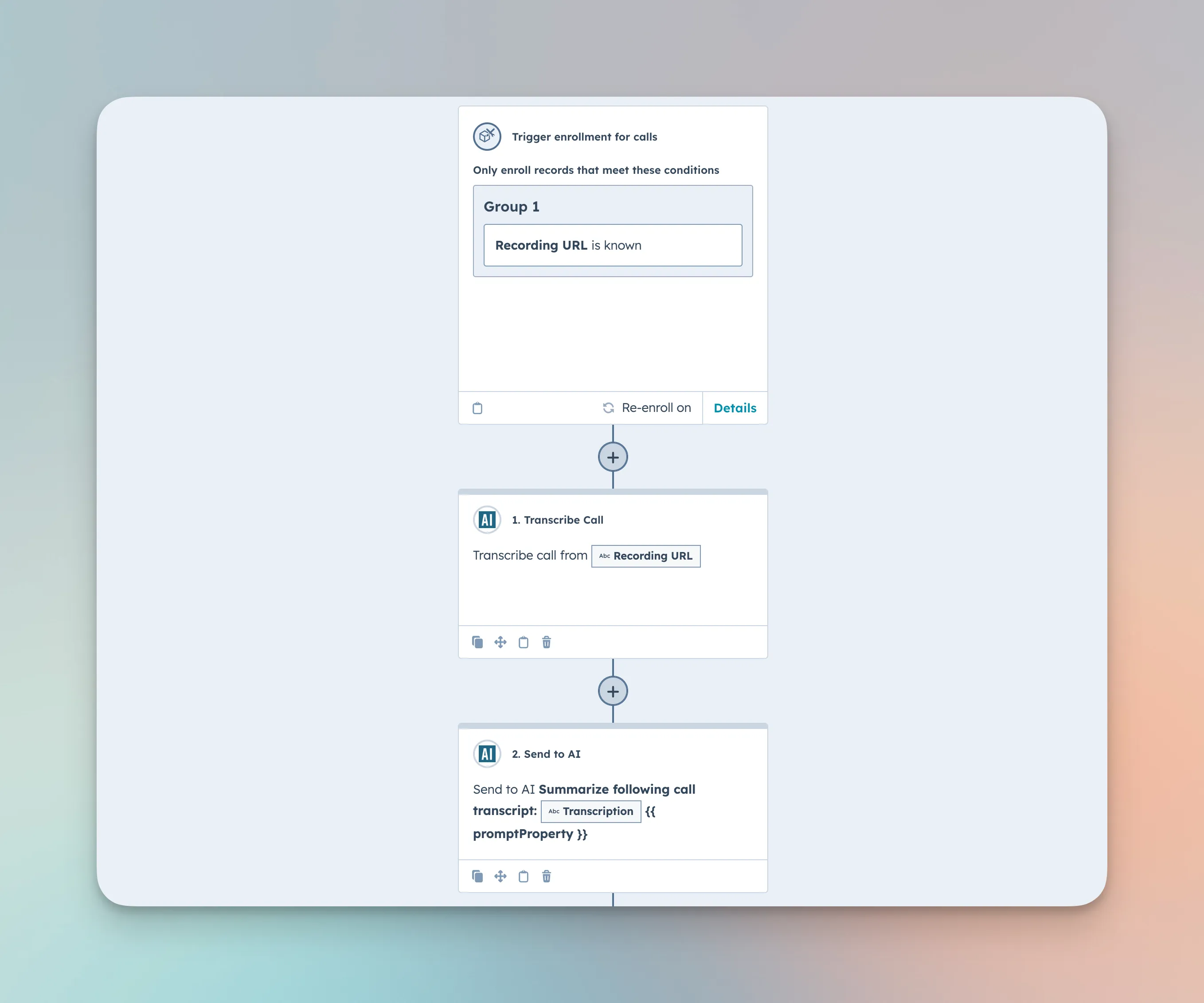
To transcribe calls in HubSpot, add the Transcribe Call workflow action from AI Studio for HubSpot to a call-based workflow. It pulls the call recording, transcribes it with OpenAI Whisper in 50+ languages, and returns the transcript as a workflow variable you can save to call notes or send to AI for summaries, follow-up emails, and sentiment analysis.
How do you transcribe calls in HubSpot?
- Register at ai.resonatehq.com and connect your HubSpot account (portal).
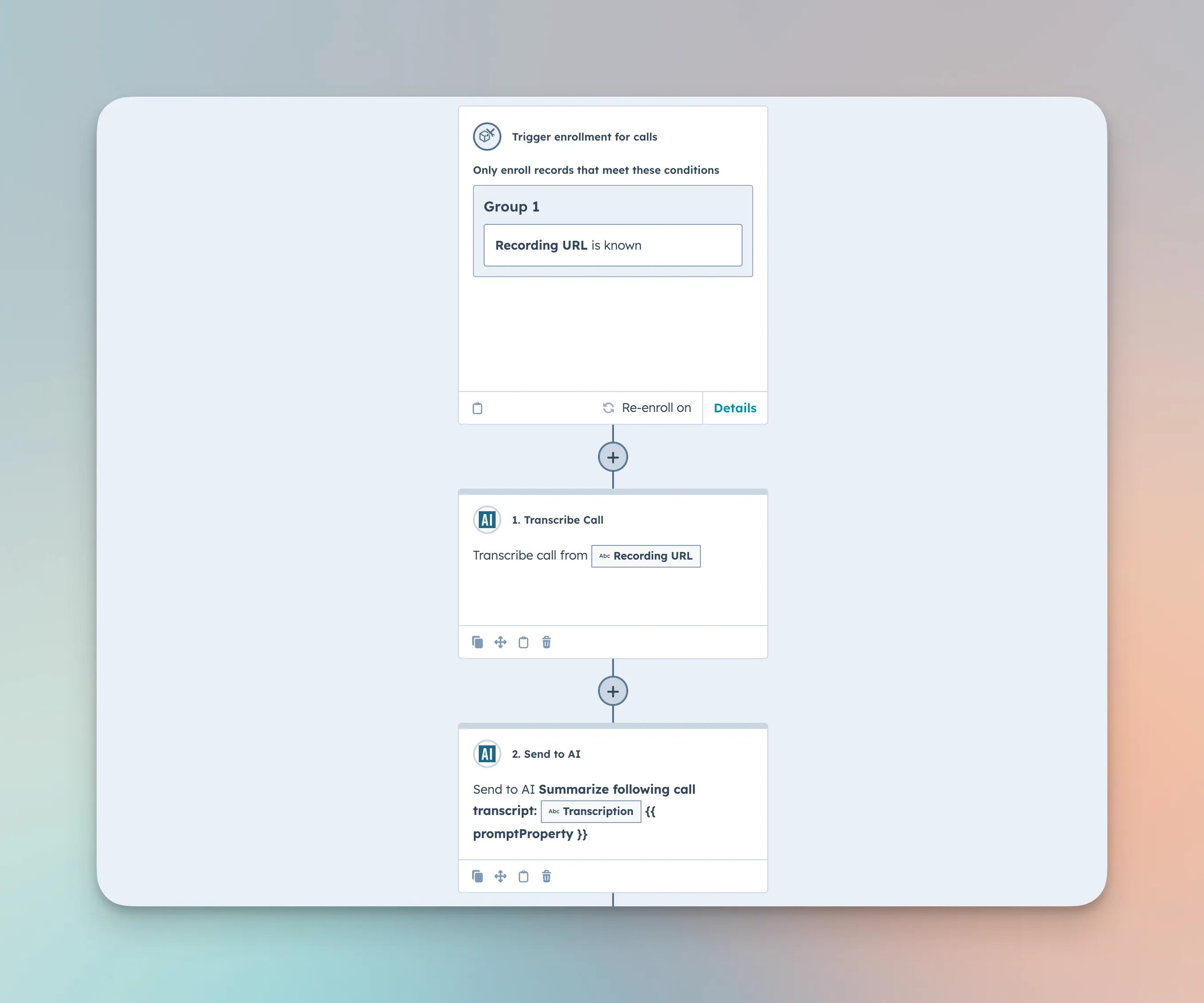
- Create or edit a workflow. Go to Automation > Workflows in HubSpot and select Create workflow (or edit an existing one). Choose Call-based as the object type.
- Define enrollment criteria. Example: “Recording URL is known,” ensuring only calls with valid audio links enter the workflow.
- Add “Transcribe Call.” Click + to add a new action, select “AI Studio for Workflows”, then choose “Transcribe Call.”
That is the whole setup. Every call that enrolls in the workflow now gets an automatic text transcript - no separate transcription platform, no manual uploads.
Transcribe your first call today. Get AI Studio for HubSpot - free plan available, works in any call-based workflow.
How does Transcribe Call work?
- Audio retrieval - AI Studio accesses the audio file from the recording URL on the call record.
- Pause removal - silent or pause segments are trimmed to reduce token usage and improve clarity.
- Whisper transcription - OpenAI Whisper processes the audio, detecting the language automatically. It handles more than 50 languages, including language switches during the same call.
- Transcript output - the completed text transcript is made available as a workflow output variable (Transcription).
What can you do with the transcript?
Save the transcript to call notes
- Add an “Edit record” action after “Transcribe Call.”
- Set Call notes (or any other text property) to the Transcription output.
Send the transcript to AI for analysis
- Insert a “Send to AI” step (also from AI Studio) after “Transcribe Call.”
- Choose your AI model (OpenAI GPT-4o mini, Google Gemini Pro, etc.).
- Reference the Transcription output in the prompt to generate summaries, draft follow-up emails, extract keywords, or perform sentiment analysis.
Want to run the transcript through your own hosted model instead? See Send to Custom AI: bring your own model to HubSpot workflows. For more automations to pair with transcription, browse our free HubSpot workflow templates.
How much does call transcription cost?
- 500 tokens per minute of audio are used for transcription.
- Pause removal lowers token usage by skipping silent sections.
- Track AI usage credits in AI Studio’s dashboard at ai.resonatehq.com.
What languages are supported?
- Automatic detection: no manual switching required for different languages.
- 50+ languages: English, Spanish, French, Japanese, Arabic, Chinese, and more.
- Handles language switches within a single call whenever possible.
Frequently asked questions
How do you transcribe calls in HubSpot?+
Does HubSpot call transcription work in languages other than English?+
What does call transcription cost in AI Studio?+
What can I do with the transcript once I have it?+
Start transcribing calls in HubSpot
Transcribe your first call today. Get AI Studio for HubSpot - free plan available, works in any call-based workflow. Register at ai.resonatehq.com and connect your portal to add the Transcribe Call action.